Hands-On Apple 241 transcript
Please be advised that this transcript is AI-generated and may not be word-for-word. Time codes refer to the approximate times in the ad-free version of the show.
Mikah Sargent [00:00:00]:
Grab your iPhone and look at your home screen. Is that a design you have in front of you, or is it just where apps kind of landed? Since iOS 18, and even more with iOS 26's Liquid Glass redesign, Apple has quietly handed you real control over how this screen looks and works, and it all hides behind one long press. Today, we're turning the grid of default chaos into something deliberate. Stay tuned for this episode of Hands On Apple. Podcasts you love. From people you trust. This is TWiT. Welcome back to Hands On Apple.
Mikah Sargent [00:00:47]:
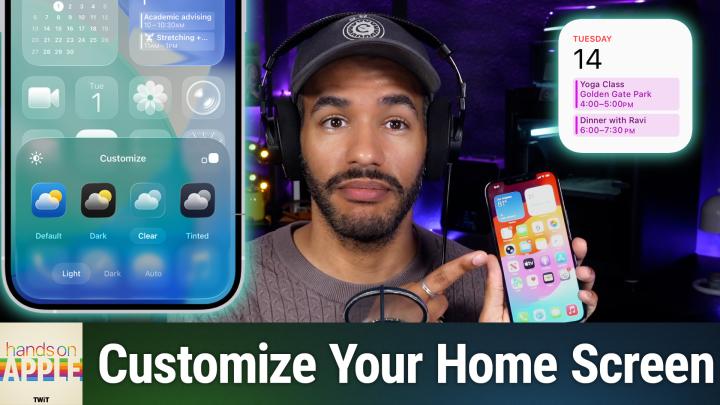
I am Micah Sargent, and today, as I promised, we're taking a look at the home screen for your phone. We've looked at how to set up your lock screen, and well, that's paired with a home screen that you have lots of choices for. So let's dig in by heading over to iOS. and taking a look. All right, here we are on iOS. I'm running iOS 26, and of course, everything to customize your iPhone's home screen can be accessed by touching and holding the wallpaper until the icons jiggle, until it goes into jiggle mode. So we will tap and hold. I like to tap and hold down at the bottom next to that search button, or if you don't have that search button turned on, it will show the dots that are representative of your lock screens, or excuse me, your home screens.
Mikah Sargent [00:01:33]:
So we'll tap and hold down there, and immediately Immediately, we see jiggle mode. We can hit that minus to remove things. But up in the top, we've got an edit button. Top left, edit button. And in here is where we go to customize. Ooh. From here in customize, we have 4 appearance options. Okay, you've got that default option, dark, clear, and tinted.
Mikah Sargent [00:01:54]:
Now, with light, dark, or auto variants within each of these, we can kind of get even More color coordination or discord depending on how you want it set up. So we'll take a look at that soon, but let's kind of talk about how these icons work. With dark icons, Apple's apps and third-party apps get this sort of, you know, near-black background, and of course this can be easier on the eyes, and of course if you have an OLED display, it's easier on the battery as well. So let's take a look. Here in default, we don't have many choices, but we can tap the brightness in the top left corner to change it between what it will look like during day mode and dark mode. And then on the right side, we can change the icon size there. So let's tap default, nothing. Dark then gives us the choice between having dark mode always on or auto, meaning that when it's night, dark mode turns on.
Mikah Sargent [00:02:57]:
So you can see the icons there, both in small and large forms. And of course, because we have it set with a wallpaper that changes based on the brightness and the time of day, that's the difference that you're seeing when you tap the brightness option in the top left corner. Clear, of course, makes these icons clear. There are light and dark versions of these, which again, you can have set up at all times or auto, which will switch between the light and dark versions depending on how you have your dark mode settings. And last but not least is tinted. And you can set this to, of course, light mode, dark mode, or auto, which will switch between different versions of the tint that you select based on the time of day. But we're going to switch it from dark to light. And when you move the slider, the color slider across the screen, that sets the tint.
Mikah Sargent [00:03:52]:
And then the slider below it is sort of a saturation option, how much of that color really shines through. And so depending Depending on the background, we might want this to be pretty orange. And we have these little, uh, if you are watching, there are 4 buttons down at the bottom. The one in the bottom left lets you switch to sort of the settings that look best with the wallpaper that you have set up and let you automatically change the color there. Okay. And then we also have an option that will allow you to change the tint but base it a little bit more in the realistic expectations for the environment that you're in. So it uses the built-in sensors as always to be able to sort of match that color. And then we have an option to base it based on the overall look of the photo in the wallpaper, or you can select a portion.
Mikah Sargent [00:04:57]:
Hmm. with that last option of the wallpaper to get a tint set up. So multiple tint options there, which is quite nice to make sure that they look how you want them to. And then once again, the other customize option lets you switch between the size of those icons. So the labels beneath them disappear and your job is to then understand what each icon leads to. I have an issue with that. I usually fail to remember. So I like to have my icons smaller.
Mikah Sargent [00:05:31]:
if I can help it. Now, once you've set up the icon size, you've set up these icons, you've got them how you want them, that sun button again, the brightness one in the top left is the option for showing how the wallpaper changes based on day or night mode. With these options now, we have Liquid Glass updates, right? We, with iOS 26, it gets a little bit more glassy, a little bit more glossy, and that clear option, Is the way to get Liquid Glass the best. So if we choose Clear and set it to Light, whoo, that is one way to set up your home screen. We can kind of call this the clear and tinted version, the Liquid Glass available across everything. So every icon gets this translucency and your wallpaper really shines through. Of course, By doing this, by setting it up this way, you do trade off for legibility, right? You, you don't get any real depth of color or really it can be a struggle to see the icons themselves. So there are some ways that you can kind of make this happen.
Mikah Sargent [00:06:47]:
You can use reduced transparency or increased contrast to still get this glassy, glassy look, but a little bit dimmed down. Tinted, of course, washes everything in that one color, and it is nice to be able to use that eyedropper as we showed to be able to select a color that you really like in the photo that you have behind you and then make it work for you. Now, that is a look at customizing things in terms of the look and feel. I'm going to change this back to the default so it feels familiar for most people, and tapping anywhere on the screen will pull you out of that. But it's not just the look of your homepage. It's also all about the layout. So setting up a layout with your widgets and icons. Right now, when you have just apps, you are tapping and holding and moving them around.
Mikah Sargent [00:07:43]:
And, you know, it's fine. You have access to what you need. But remember that you always can get to your apps through the App Library there on the side of the screen. So it's not necessarily as important anymore to have your whole screen filled up with apps. Right. Screen filled up with apps. It's scary, I understand, to make a change, especially for a home screen, but being able to arrange apps around your wallpaper because you don't need to hold to the grid as much anymore. So I could take the Wallet app off of the main screen here and I can move Settings back.
Mikah Sargent [00:08:20]:
Whoops. I can take Settings and move it back and then I'll move the Podcasts app and move it over. Right? And then we come back to the home screen. I move App Store down, I move TV down. Check that out. Now I've got this space on my home screen where maybe that's where your dog's face is peeking through if you have a wallpaper of your dog on your home screen. A little bit more options for being able to arrange these icons anywhere. It's still on a grid, yes, but it's a little bit more flexible, which is nice.
Mikah Sargent [00:08:52]:
Widgets, to add widgets to your screen, on your home screen, we can tap and hold anywhere where there's not an icon to get to jiggle mode. We tap edit in the top left corner and we choose add widget. Now, of course, you have a lot of built-in widgets. This is not a widget episode, so we won't go into depth about them, but let's say you wanted to have multiple clocks on your home screen. You can drop that onto your home screen, tap done. Now I've got a clock widget with multiple times that I can see what time it is in Cupertino, in Tokyo, in— perhaps Paraguay, and I believe that's Sydney in the bottom left-hand corner. Regardless, these are all different options that you have that set up your home screen a little bit different than the standard grid of icons. Now, I think that it's nice to think of that main first page that you're on there as the— of course, it's going to be the place that you are regularly.
Mikah Sargent [00:09:49]:
You're touching these icons hourly and widgets that you always want to glance at. Move everything else away. or to the App Library. I love that the system can organize those apps for you, that it can help you find them as you need to, that you don't have pages and pages and pages of apps. It's so much faster typing in the name of an app than scrolling through pages of apps to try to get to the app that you want. So I really recommend using the App Library, which is accessible always as a swipe at the end of your home screens. And if you tap and hold, by the way, and you choose Edit and you choose Edit Pages, you can remove but still keep— because what I've done is I've selected the home screens that I want to be part of my home screen setup. So if I deselect them, I'm telling the system I don't want those pages visible to me, but the great thing is they stay unless you hit the minus icon in the top left corner while you're in this mode.
Mikah Sargent [00:10:51]:
That will delete the page, but just deselecting it makes it unavailable, but still there. I found this very handy as someone with a little bit of anxiety about making those changes, about switching this up. I found that very relieving to know that I could test it, see if it was for me, and then use it and be happy, right? And then if I was unhappy, I could just pop back in and bring them back to me. So if I tap done now, I've got my main home screen. And now swiping over gets to the App Library. They're organized by category there, but then also I can use that search function in the top corner, in the, at the top to be able to get it. Really like to be able to do that. But then it also makes it possible for you to think of, if we choose Edit Pages, if we think of the home screen and all home screens as a place to, and I'm going to choose Remove App and choose Remove from Home Screen to get rid of those.
Mikah Sargent [00:11:47]:
Okay. and we'll choose Remove App, Remove from Home Screen, and then we access that page, we can add widgets and make this entirely a widget page. So instead of setting this up as another page for more icons, now that second page becomes your fun widget page, and boom, we move to the App Library from there. It's a good idea, again, accessing that jiggle mode for getting to your page area to change how your pages are set up. So again, we tap and hold while we're on the home screen. We hit edit— whoops— we hit edit in the top left corner there and we choose edit pages. This is the great mode for being able to add and remove those pages. And then another way, if you're feeling like your phone's a little cluttery, you can go in and you can declutter by living out of the app library.
Mikah Sargent [00:12:46]:
Get rid of those pages and just live out of the app library. Removing an app from the home screen is what we just showed where you're keeping the app, you're not getting rid of the app, but you just say, I want that icon gone. And then the great thing is that when you tap and hold on that, on any app icon, you can actually change it from an app to a widget. It's small widget, it's medium widget, or it's large widget depending on what is offered from the app. Very nice way to make sure that you get access to exactly what you want set up how you want, where you don't need to overload yourself. And you can just pick the widget setup and the wallpaper setup and the home screen setup that works for you. I want to mention that you may have seen in the tap and hold menu here, the option to require Face ID for this app. If you want to, you can head back to episode 190, where I did a deep dive on locking and hiding individual apps, but still keeping them on your device.
Mikah Sargent [00:13:54]:
So that is an added layer of privacy when it comes to setting up your home screen, which I think is part of the process of customizing your home screen how you would like to have it. All right, uh, if you would like some homework here, go ahead and pick a look for your home screen, you know, an overall vibe. Is it clear? Is it tinted? See if it sticks. Take your time on the tinted option. Really set it up how you want. And then of course, maybe give your home screen a layout pass. Hide one page of apps that you never even open. Add a widget that you think you'll actually glance at.
Mikah Sargent [00:14:32]:
Perhaps even move your foremost used apps within your thumb's reach if you haven't done that. Always a great idea to hold your phone and see what's actually near your phone depending on which hand you're using. It's these little small changes that I think could make a difference for you every single time you go to unlock your phone. Folks, thank you so much for tuning in to this week's episode of Hands On Apple. Always a pleasure to bring you this show. If you have questions, email me, hoa@twit.tv or maika@twit.tv works, and I'll be back next week with another episode. Until then, thank you, goodbye, and we'll catch you next time.