iOS Today 818 Transcript
Please be advised that this transcript is AI-generated and may not be word-for-word. Time codes refer to the approximate times in the ad-free version of the show.
Mikah Sargent [00:00:00]:
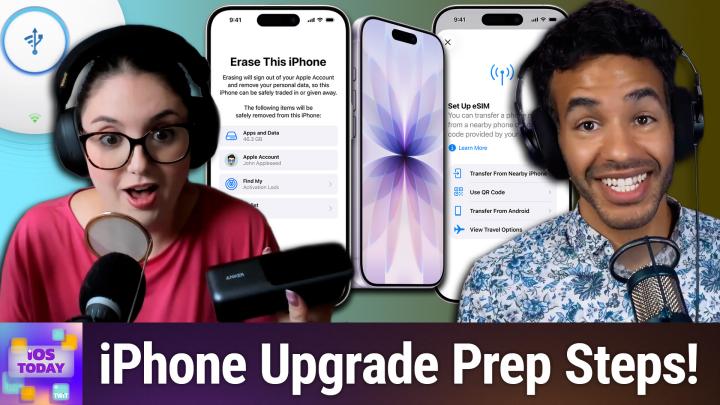
Coming up on iOS Today, Rosemary Orchard and I, Micah Sargent, talk about how to get ready for an iPhone upgrade. Stay tuned for this episode of iOS Today. Podcasts you love.
Rosemary Orchard [00:00:16]:
From people you trust.
Mikah Sargent [00:00:19]:
This is TWiT. This is iOS Today, episode 818, with Rosemary Orchard and me, Micah Sargent. Recorded Tuesday, September 4th, 2023. 1st, 2026 for Thursday, September 3rd, 2026. Ready, set, iPhone upgrade. Hello and welcome to iOS Today. This is the show where we talk all things iOS, iPadOS, watchOS, and so much more. We love to talk about them here on the show and help you make the most of your devices.
Mikah Sargent [00:00:51]:
My name is Micah Sargent, and I am but one of your humble hosts.
Rosemary Orchard [00:00:57]:
And I am Rosemary Orchard, and very excited to talk you through the upgrades. Whether that's just mentally, physically, or however you choose to do it.
Mikah Sargent [00:01:08]:
Yeah, sort of the upgrade therapists or something, the upgrade gurus. Yeah, this— look, there's an iPhone event just around the corner, and at it, Apple will announce a new phone. And if you're thinking about doing so, then thinking about doing so, meaning thinking about getting a new phone, this is the time to talk about it. Because there's some work that you need to do before that delivery truck arrives. You gotta choose the right way to get your phone. You need to make a backup of your device, and then you gotta kind of move things around and make sure everything's good to go before it comes time to do so. And it starts with upgrading. How will you make the choice to upgrade? Well, of course, we know that Apple recently announced its iPhone upgrade program, updated iPhone upgrade program, now called Apple Upgrade.
Mikah Sargent [00:02:07]:
And this is specific to the US, but it's a leasing program that we've talked about in the past that gives you the ability to lease a phone. So 12 and 24-month leasing options. This is available for iPhone and for Apple Watch. And then also Mac and iPad leasing options from 24 to 36 months. So these prices start at $1,799 for the phone and Apple Watch, or excuse me, $1,199 for the Apple Watch. And in this case, we're just gonna focus on the phone. So with this $1,799, you, we'll see if that's going to carry through into Apple's next announcements, but that is a big part of the Apple upgrade. And, you know, we talked about what is involved with that process.
Mikah Sargent [00:02:59]:
We talked about how you need to be aware that it is sort of run by Klarna, the external company. And we talked a little bit about the gotchas and stuff, not only on this show, but also on MacBreak Weekly. Uh, so, and I think also on Tech News Weekly the week that Apple Upgrade was announced. So you can check all of those out to get kind of, uh, more in-depth info about it. But what we're here today to talk about is how you are choosing to make a purchase. And bear in mind that there are so many options, right? I mean, you can, of course, go through and purchase the phone outright. Uh, that is the option where you just pay full price right away and the phone is yours. There's also the option to do Apple Card installments if you have an Apple Card.
Mikah Sargent [00:03:47]:
And then usually carriers offer carrier plans as well. So be aware of the fact that those are all options to you. And, you know, one of the things, Rosemary, that can be a little bit difficult is the part where you are, if you've done, you know, Apple Upgrade or if you are planning on trading in your current device.
Rosemary Orchard [00:04:14]:
Mm-hmm.
Mikah Sargent [00:04:15]:
That process is a little bit, um, it can be kind of scary, right? To make sure that you get it right.
Rosemary Orchard [00:04:22]:
Yeah. Yeah, it can be for sure.
Mikah Sargent [00:04:24]:
Yeah.
Rosemary Orchard [00:04:24]:
Yeah. Especially so if, if you are trading in your device, you know, there's a couple of different ways you can do it. You can do it the way that I do it, which is I get a new iPhone every single year and then I give my iPhone to my dad, which means that I have like a good week or so to swap everything over and get everything sorted. Uh, there's also remote trade-in with Apple where they send you the new phone. They have hold on your card. So I would recommend looking into using a credit card for that rather than a debit card so that your money hasn't disappeared out of your bank account for that. Um, where that you say, I will send you my, my old phone, send me the new phone. They send you the new phone, you swap everything over, you stick the old one in the post and send it back.
Rosemary Orchard [00:05:04]:
And then there's going into store. Um, and going into store has a couple of advantages of there's a bunch of tech people around who, if something goes wrong whilst you're doing the transfer, can actually help set things up. Apple Stores also have great internet, which If you don't have great internet at home for doing a transfer or a restore, that can be really useful. But also it does mean that you have to be like, cool, I'm getting a new iPhone on this day and I have done everything with my old iPhone that I needed to do beforehand and I'm gonna swap everything over and I'm gonna go into store and I'm gonna do that. If you are doing that, folks, please make sure you have backed up your devices first. And also maybe, is it a little out there? Take some battery packs with you just to make sure that you've got some, like, ways to keep your devices charged as you're doing the transfer. Uh, so I'm, I'm a big fan of, uh, battery packs with built-in cables and like a watch battery. So this one's actually got like a puck on it for my watch, just so that everything can be transferred over depending on how you do the transfer.
Rosemary Orchard [00:06:07]:
Because there's a direct transfer option or there's a restore option, and one of them takes less time up front to give you a device that you can actually use, but then takes a little longer to actually restore all of the things, like every single app that you might want. So might discover that the app that you need for the subway is not yet downloaded. So you might need to prioritize those downloads before you walk out the store.
Mikah Sargent [00:06:29]:
Well put. Yes, there are, um, there are a couple of things that we can kind of go through here to talk about what, um, what is the sort of preparation, right? Um, in, in doing so, uh, you again have the option to To buy it outright, do that financing, use AT&T, T-Mobile, Verizon as those methods of doing so. And I believe in every case now, it didn't used to be the case, but now in every single one of those carriers, you're going to get a, an unlocked phone, which is nice. So let's talk about what, what you want to do when it comes to kind of backing up your device, right? Because as you mentioned, Rosemary, there are so many different ways, including that Quick Start mode. But also what I like to do is use the tool whose name is escaping me in the moment. Oh, iMazing. That will let me create an encrypted local backup. And the reason that I use iMazing is because while you can plug in your phone and get an encrypted local backup right there on your Mac, What you can't do is easily choose the location of where that backup is.
Mikah Sargent [00:07:49]:
And so what is done by default in Finder is it's saved to your Mac. And if you don't have the storage space for a big old phone, that can be a problem. iMazing lets you choose where the encrypted local backup goes. And so I'm able to plug in an SSD, tell it to put it there. And what this does is it will preserve saved passwords, Wi-Fi settings, health data, call history. a bunch of stuff that you would not get if you do other forms of transfer between devices. So I always recommend doing an encrypted local backup no matter what, even if, even if you are planning to do the Quick Start feature and not do a full backup and restore.
Rosemary Orchard [00:08:35]:
Yeah.
Mikah Sargent [00:08:35]:
Especially when you're on a time limit on getting that phone that you had traded in to get the money back after your new phone arrives. That's the big thing. I have had people send in their phone and then realize, oh my goodness, I don't have this or this or this or this. And it's really rough when that happens.
Rosemary Orchard [00:08:55]:
Yes. Yeah. Now, if you are relying on iCloud backups, folks, please, please, please, please, please make sure you have enough storage space for all of the things that are on your device. Because if you're planning on just doing an iCloud backup and restoring everything from the iCloud backup, that is a thing you can do. But to do that, if you want all of your photos and all of your documents and everything to be transferred over, you need to have enough storage space in iCloud for everything. So otherwise, things like the On My iPhone Documents section of files, that will just disappear. All of the photos that haven't uploaded to iCloud will also disappear. So please make sure— please, backups.
Rosemary Orchard [00:09:37]:
Backups are great. We love backups here at TWiT. It is a core part of the TWiT Tech tenet of, you know, the commandments. First one, do backups. Second one, more backups, please. Third one, no, seriously, have you got backups? Did you do a backup this morning? Because the other thing to note, especially if you're doing an iCloud backup, is it adds to it every single time it does it. So it's not like it's going to start from the beginning on a 1TB iPhone or even 256GB iPhone. That's still a lot of data.
Rosemary Orchard [00:10:08]:
It goes, oh, this is the small amount of data that's changed between the last time you did a backup and now, this is what I'm gonna back up. That's all it does. And so it's worth doing the backups. And yes, iMazing also works on Windows as well. So you don't have to have a Mac to be able to do an encrypted backup to a PC.
Mikah Sargent [00:10:25]:
Mm-hmm.
Rosemary Orchard [00:10:26]:
And also, even if you've only got one computer in the family, I would recommend maybe just borrow everyone's devices this upcoming weekend and back everything up. You know, when's the last time you did that? It was that maybe never, a long time ago, 3 minutes ago. If it was 3 minutes ago, give yourself a pat on the back and a cookie. And if it was, uh, you know, a long time ago, maybe grab some snacks and just sit down and plug your phone in for, you know, a little bit and do it because it will, it will be worth it one day. One day you'll be very, very glad you have that backup.
Mikah Sargent [00:10:59]:
Indeed, indeed you will. Um, now with this, after— so you've made an encrypted local backup, And the next step is to kind of look at your devices and see what you— what else may need to be transferred. So for example, if you've got an Apple Watch, that ends up being part of the process. Also, if your phone is a newer phone and does not have a hardware SIM and has an eSIM, then that's also part of the process. Now, most of the time, knock on wood, this just works on its own. When you're doing the transfer, it asks, hey, can I have that eSIM from your old phone and you say yes. But occasionally things might go poorly. And if they do, then you will potentially need to reach out to your carrier.
Mikah Sargent [00:11:51]:
I had to do that one year and it was a little difficult because they wanted to send me a code to my phone to confirm that I was who I said I was, but my phone number wasn't working. So it ended up being this whole thing. We ended up getting it to work out. So it's— I understand. I was just talking to someone the other day and And they were— I was explaining eSIMs to them. And boy howdy, were they unhappy about that. And look, I get it. I get that fear because of situations like the one I was in.
Mikah Sargent [00:12:21]:
I understand why people would feel a little bit uneasy about not having the ability to just pop in a SIM and move on with life. So it can be a little bit scary. But I will say that I feel— and I'm curious to hear, Rosemary, if you feel the same way— that the process has improved immensely.
Rosemary Orchard [00:12:42]:
Oh yeah.
Mikah Sargent [00:12:42]:
Since its introduction. And now I have not had too much of an issue with it.
Rosemary Orchard [00:12:48]:
Yeah, I've not had issues for— I mean, I don't think I've had an issue for the entire time I've been using an eSIM, which, you know, is actually quite a while. As soon as I moved back to the UK 5, 6 years ago, I switched to using an eSIM because that was now a feature that was available to me. And it's been great. And also, As a side note, I switched carriers a while ago, and, um, the entire process, including getting a referral code from my mum, who was not the fastest person to respond, um, and setting everything up and getting a new— like, temporary— getting a temporary new number and getting everything switched over, and then having the 2 carriers talk to each other to switch everything over, uh, took 3 hours, and I didn't need to leave the house or get anything posted to me. Um, and that those 3 hours were basically me waiting for a message from my mum, then me actually doing the, the, the rest of the process, and then getting a text from them to say, hey, your number's been transferred, congratulations. Um, I didn't need to find a SIM tool or anything. So yeah, I, I've had great experiences with eSIM. Um, it is just one of those things where every so often there might be a glitch in the system.
Rosemary Orchard [00:13:58]:
Um, but that can happen with physical SIM cards as well. To be honest, I saw it a lot more with physical SIM cards that people would get a new phone They'd go to put the SIM card in and the SIM card would get damaged as part of the process. Um, and they would then have to go to a store to get a new SIM card immediately to get everything working. And that was a lot more difficult. So yeah, if you are upgrading to a new iPhone, um, and you are in the US at least, uh, you will be changing to an eSIM because the new iPhones in the US only support eSIM. Uh, here in the UK, they still have physical SIM cards. slots as of, you know, the iPhone that I have in my hand. But Apple's announcement is, yeah, in less than a week.
Rosemary Orchard [00:14:38]:
So we'll have to see what happens there.
Mikah Sargent [00:14:41]:
Indeed. Upon your completed sort of backup plan, right, that you have done your backup to iCloud, you have done your local encrypted backup, and you have figured out, you know, what way you're planning to do the transfer, then it's time to make sure that you verify everything, right? So when you go through the process, you, so you've, you get your phone, you figured it out, you, you either chose Apple's new upgrade plan or you bought the phone outright or you worked with your carrier, whatever means. You got the phones next to each other and it says, you know, process is complete. Do not just erase the old phone because everything's done. No, let's go ahead and test the things that matter in your daily life, right? Then do Apple's trade-in preparation steps. Don't delete stuff yet. First, make sure you check that your calls and texts are where you expect them to be, that your eSIM is truly working, your cellular data. I like to toggle off cellular, then turn it back on, make sure it's still connecting, no problem.
Mikah Sargent [00:15:49]:
Make sure that if you did the encrypted local backup, it'll happen faster. If you did the quick transfer, it'll happen slower, but check that your photos have made their way to your phone or are in the process of downloading and maybe check in with your online photo library to make sure that it's all good. So you can go to iCloud.com and see that. Look for your health data. Go in and make sure that you have access to the Passwords app and that your passwords are there because you may need to do authentication.
Rosemary Orchard [00:16:23]:
Mm-hmm.
Mikah Sargent [00:16:23]:
Check that your Apple Pay is all set up properly. You've got your cards there. Check that your Apple Watch is actually connecting to the right phone. You can do that by on the older phone turning off Bluetooth, turning off Wi-Fi. Well, actually, the best way to do is just turn off that phone and then make sure that it's still showing that it's connected to the new phone.
Rosemary Orchard [00:16:44]:
Well, the other thing I was going to say, folks, is don't just check that your your cards are there in Apple Pay. Please make sure that you reverify them if you need to before you you go anywhere so that you're not suddenly. stuck somewhere relying on your iPhone or Apple Watch as a payment method and it doesn't work. So maybe, maybe carry an actual wallet on the day that you upgrade, just in case, if you don't normally do that. I know most people probably do. I personally always keep a backup card buried in my car just in case. So if I'm driving somewhere and I need to go get a payment method because my phone and my watch suddenly magically stop working, then I can do that. But yeah, just double-check to make sure that not only are your cards in Apple Pay, but also they're working in Apple Pay.
Rosemary Orchard [00:17:31]:
Just because otherwise it can be very awkward, especially if you're, I don't know, trying to get on the tube in London. You will get mowed down by the people behind you. So yeah, make sure you've got that set up.
Mikah Sargent [00:17:42]:
That's so funny. Then once you've done that, now it's time to actually do the erase of the phone. And the trade-in of the phone. So Apple walks you through the process of how to do so. And make sure you follow the process, follow it through with how it's set up. And what I'm saying here is, if you think that you need to go into your old phone and select all of your photos and then hit the delete button, or you need to go into the iCloud files and select all your files and delete, no, do not do that because those changes are still going to sync across your devices. Follow the process for erasing the phone, which you can do by going to Settings and then General and then Transfer or Reset iPhone and then Erase All Content and Settings. That is the way that you go about doing the process that will give you what you are looking for, not the manual option of deleting stuff because that, that transfers over.
Rosemary Orchard [00:18:53]:
Yeah, yeah, I, I have seen this and I have attempted to help people restore this. Fortunately, Recently Deleted did come in super handy there. Uh, but yeah, please don't manually delete things unless you genuinely really want that thing gone. You know, this is a good time, uh, as, as we're waiting for Apple to, to make their announcement, to go and have a look through and maybe prune some of the apps that you don't need. Review how much storage you currently have used on your iPhone. Do Do you potentially need to get a larger iPhone next year? Not physically, but in like disk capacity? Or do you actually want a larger or smaller iPhone? Or could you maybe go down from 1 terabyte to 512 gigs because it turns out you aren't using all that much space anyway? You know, have a look and have a review and see what makes the most sense for you. And speaking of making the most sense for you, there are rumors that Apple is coming out with a foldable iPhone this year. Um, and, uh, I'm sure, Micah, you are also intrigued by this idea.
Rosemary Orchard [00:19:52]:
So have, have a think about all of your devices, okay? This is not just one device that we're talking about here. Well, it is one device that we're talking about, but are— do you also maybe have like an iPad Mini that if you actually get a foldable iPhone that kind of folds out to about this size Maybe you don't need 2 devices. Maybe you can get away with just one of those. So maybe actually it makes sense to trade in another device as well to cut the cost or pass one off to a friend, you know, or something like that. In my case, I also have an original Apple Watch Ultra here, which is not getting the software update this year. So I'm going to be trading this in as well, all of which will give me Apple vouchers, which I could spend in the App Store on iCloud subscriptions and everything. But I'm actually going to be putting that cost towards the or the vouchers towards the cost of the new iPhone so that I will be able to get whichever device makes me happy or at least makes me think that I'll be happy with it. If it turns out I get the foldable and I absolutely hate a folding iPhone, then I will be returning it.
Rosemary Orchard [00:20:55]:
Apple does have decent returns policies.
Mikah Sargent [00:20:57]:
They do.
Rosemary Orchard [00:20:58]:
Don't smash it so you can return it. It might take— it might be a little awkward because of the immediate— like there's a sudden rush on the new iPhones if everybody wants to upgrade, uh, to start with. But yeah, if, if you get something and you, you've gone bigger or smaller or folding, uh, you know, and it turns out you actually hate it and it's not what you wanted, then you can actually return it and go for something different. Uh, so you will have to pick a different device if you've traded in your old phone. You're not going to be getting that back from Apple. Uh, that, that's not how that Indeed.
Mikah Sargent [00:21:36]:
Any other tips that you have for people before the upgrade process takes place?
Rosemary Orchard [00:21:45]:
Not really, folks. Just please remember your backups. And you don't have to be the first person with the new iPhone. It can be fun to be on the bleeding edge of things, but don't forget there's also iOS 27 coming out, which if you've got an iPhone already, you can upgrade to that. It's probably going to be compatible with, so you can spend the time upgrading to iOS 27, iPadOS 27, HomePodOS 27, tvOS 27, and all of the OS 27s, including macOS 27. So yeah, definitely keep an eye out for that. And yeah, I'm curious to think you know when when this episode goes out, there'll be just under a week before Apple actually makes their announcements. So feel free to post in that club.
Rosemary Orchard [00:22:30]:
Discord thread of all of your thoughts on what's actually going to happen, and then we'll definitely have to break down what happened afterwards.
Mikah Sargent [00:22:39]:
Indeed. All right, folks, let's take a quick break before we come back with some news. Uh, we've got some news up next. All right, we are back from the break, and of course there's a little bit of news. We talked about it at the top of the show. Apple has officially announced its Surprise and Shine event for September 9th at 10:00 AM. Of course, we'll be covering it live here on the TWiT Network. It is very likely the, I mean, there's, look, every year Apple in September announces new iPhones.
Mikah Sargent [00:23:13]:
And so we have no reason to believe that this is going to be a different case this year. They'll be announcing new iPhones on September 9th. And of course the foldable phone is one of the rumored devices. I mean, this is why we're doing this episode. And I know I'm looking forward to the event for sure. Can't wait to see what Apple announces. And it also means that we're creeping ever closer to all of the 27 updates being available for people's phones. So I'm really excited for people to get to see and use iOS 27, iPadOS 27, et cetera, et cetera.
Mikah Sargent [00:23:50]:
I think it's gonna be a great update for people. And I'm curious to see how people end up using Apple's Apple Intelligence with Siri. As well. That's, that's exciting for me.
Rosemary Orchard [00:24:02]:
Yes. Yeah, I'm excited to see what colors come out. I don't think you're in luck for green this year, Micah, but I have heard rumors about purple.
Mikah Sargent [00:24:11]:
Oh, that's so exciting.
Rosemary Orchard [00:24:13]:
I just, I just hope if there's a foldable, it comes in purple. I would— I want purple. I need purple in my life. But we'll have to see.
Mikah Sargent [00:24:22]:
Yes, we will have to see. I hope that there's purple for you. It's okay that there's no green. So we will just You know, we'll wait and see. All right, that is pretty much all in the news segment. There's of course a new beta update for iOS 27 and macOS, et cetera. The idea of course is that Apple is rolling out these updates in preparation for the eventual and not far off launch of these operating systems. So these updates keep rolling out and the sort of changes that have taken place in the latest one or not.
Mikah Sargent [00:25:02]:
They're not adding a bunch of new features at this point. So if you are on the beta track, then, you know, make sure you get that update in.
Rosemary Orchard [00:25:10]:
All right.
Mikah Sargent [00:25:12]:
I think I can. Yeah, I can. I can hear the music. It's time for Shortcuts Corner. This is Shortcuts Corner, the part of the show where you write in with your shortcuts requests and Rosemary Orchard, our shortcuts expert, provides a response. This week's Shortcuts Corner request comes in from Kenny who writes, can I create a share sheet shortcut? Ooh, share sheet shortcut that's sent— oh wow. Can I create a share sheet shortcut that sends selected photos to my wife Copies them to a specific iCloud Drive folder, and then deletes them from Photos. I like this, Kenny.
Mikah Sargent [00:25:59]:
I like the idea of sort of built-in file management. Is this possible, Rosemary?
Rosemary Orchard [00:26:07]:
I believe it is, Micah. Sorry, just one second before I continue. Is my iPhone flipped for you or is it the right way around?
Mikah Sargent [00:26:15]:
Right way around.
Rosemary Orchard [00:26:16]:
Cool, it's just Zoom doing the flippy thing. Cool, then we're good. I just want to continue before, yeah, Kevin has to reverse everything in post. So yeah, this is a really cool idea, Kenny. I really like the idea. I have prepped my photo album with dog pictures and pictures of a lamp that I'm selling on Facebook Marketplace. So I'm good to go here. And so to start with, what we need to do actually in the shortcut is I like to swipe down and start by tapping on the info sheet at the bottom and turning on Show in Share Sheet.
Mikah Sargent [00:26:45]:
And now—
Rosemary Orchard [00:26:47]:
Now here's the part that we need to get right, folks, because otherwise every time you hit share, this shortcut is going to show up everywhere and we don't want that. So I'm going to go through and I'm going to turn off— You haven't actually specified, Kenny, if it's just photos or is it maybe also videos? So tell you what, I'll leave media on for you so you can share videos to this as well. But I'm turning off everything else here because we don't want to be sharing iTunes products or App Store apps or dates to this. I mean, maybe you do want to share a date with your wife, but this is probably not the best way to do it with iCloud. Now, one of the things I personally prefer to do here is if there's nothing shared to it and you run this shortcut from the Shortcuts app, or maybe you trigger it through Siri or something like that, I would like it to actually go, hey, there is nothing here. Please, can you ask me for something? It is not popping up the option here, but it should come up with if you change that to from continue to ask for, it should come up with the option to choose exactly what it is. But either way, that's that part sorted. So now, sending to your wife, you've not specified how you would like to do this.
Rosemary Orchard [00:28:00]:
So I'm going to take a wild guess and stab in the dark because you also want to save them into iCloud Drive into a folder that maybe your wife is also on iPhone. So we can use Messages for that. Uh, so I'm gonna say send message. And here we go. And so now we're going to send our shortcut input to— and then here's where you select a person. I'm actually going to leave this blank because otherwise it'll pop up a person and their phone number, and I don't really want to share Micah's phone number with the entirety of the internet. Thank you, I appreciate that. But yeah, you would select a person there, and I will make sure to edit the shortcut before I share it in the show notes so that it will ask you to select a contact when you import the shortcut.
Rosemary Orchard [00:28:38]:
Shortcut because I will always share my shortcuts in the show notes. And then what we want to do is we want to save a file. Now I'm just going to assume that any file name is fine because you're, you're mostly worried about what these look like. So I'm gonna save that shortcut input again, and then you should be able to specify where it is. I have to say I've had a couple of issues with shortcuts unfortunately on the absolute latest iOS, uh, beta 8 which came out yesterday as we record the show, and I didn't have time to try and roll back my phone. So the, the expanded option here is not showing, but I will edit that so that you can select your location. And again, I'll set it up so you can select that when you import your shortcut. And then we want to delete photos.
Rosemary Orchard [00:29:24]:
Now this is where it should work perfectly and we should just be able to go, hey, I want to delete our shortcut import input, and that's it. Now, every so often, Delete Photos plural goes, hey, you're trying to delete 27 photos. I don't like that. If that happens, I'd recommend opening the settings and going down to the Shortcuts app. I'm in the notifications area rather than under apps. So here we go down, we find Shortcuts, which is here, and then we've got Advanced. Okay. And then here you've got allow deleting large amounts of data and allow deleting without confirmation.
Rosemary Orchard [00:30:07]:
Now, of course, you need to be smart if you're going to turn this on and not create a shortcut that's just going to go and delete every single thing in your iCloud Drive. Please don't do that, folks. I— it's so difficult to come back from that. It's really annoying and frustrating. So please don't do that. But you can turn these on and then this will allow the app, the shortcut to just run. And then this is it. Here we go.
Rosemary Orchard [00:30:30]:
Now I've come back to the app. This is what's working. So you turn off Ask Where to Save and then you select your folder. So where it says Shortcuts, that is the name of a folder in iCloud Drive. You can select your exact folder. Now I'm gonna do a little bit of extra work here because I don't know, maybe Kenny wants actually to put a folder inside this folder with the date of when these photos were shared. I don't know, maybe Kenny and, uh, his wife have a real estate business together and these are actually photos of listings that they're taking or something. I'm just making something up here, but there are a lot of industries where if you're working together you might want to share pictures together and you might want to put it in a folder with a date and a timestamp.
Rosemary Orchard [00:31:16]:
So I'm going to say create a folder. And there are a lot of create folder options, but we are specifically looking for this blue one here because that is the Documents one. And then we're going to create a folder and we're just going to scroll across and say current date. Now the other option that you might have seen there— I'll just clear the variable to show you— is also an ask each time. So it can just pop up and go, hey, what do you want to call the folder. And then what we can do after this is specify that we want to save things in the Creative folder. Oops, not Onset Path. Sorry, I tapped into the wrong space.
Rosemary Orchard [00:31:53]:
You select the shortcuts and you change it to Creative folder, and that's it. That's all you need to do.
Mikah Sargent [00:31:59]:
Yay!
Rosemary Orchard [00:32:00]:
So there you go, folks. That's, that's it. It was a really nice, uh, request from Kenny. I'm really glad that I can answer this, and, uh, please feel free to send in your So, if you have any requests, even if you've had Siri create your shortcut, still ask me what you asked Siri, and then I'll see if maybe my shortcut is a little better. Feel free to share your shortcut as well. I kind of wanna do a battle of the wits with Siri.
Mikah Sargent [00:32:21]:
Oh yes, I agree, I agree. I know I've been waiting for that for sure. All right, moving right along, let's share our App Caps. These are the apps or gadgets we've been using now or have been using for some time that we think are great and want to share with all of you. Sneaky Sasquatch is an Apple Arcade game that is really popular among our listeners. And so I thought I'd highlight something that's going on in the Apple Arcade Store, which is that Subway Surfers, another game that you can play, has a crossover with Sneaky Sasquatch. And so this— it launched on August 27th and it runs through October 7th. So if you liked Sneaky Sasquatch, head into the Apple Arcade Store or get Subway Surfers Plus, and you can start playing it with Sneaky Sasquatch.
Mikah Sargent [00:33:18]:
Apple Arcade, $6.99 a month on its own, of course included in many an Apple subscription. So you can also check it out there. And buying new devices and stuff also will result in you having trials of Apple Arcade. So if you haven't used one of those free trials, this could be an opportunity to. Rosemary, what is your app cap?
Rosemary Orchard [00:33:42]:
I flashed it briefly on screen earlier, Micah, because I do love to tease our listeners and of course our video viewers like that. This is an Anker. It's called the Anker Laptop Power Bank, 25K, 165-watt, built-in and retractable cables. So it's got a really nice built-in braided cable here on the side. It's not super long, but it's certainly long enough for for charging plenty of devices. And then at the top it has, again, not super long— this is maybe a meter long, this, uh, cable, uh, by the time it comes out fully— but yet another charging cable. And then on the side down here there's a USB-C cable that you can use for charging it as well as charging another device, and a USB-A cable. And then there's also this button which turns on the screen on the front which tells you how much battery something has.
Rosemary Orchard [00:34:32]:
And then what you can do— I happen to have my Kobo on my desk here because I prepared for this moment, folks. If you plug something in to charge, it will pop up on screen and it will show you what wattage that device is using and how quickly it's charging. Yeah, I really like Anker batteries. So it's only outputting 5 watts right now to my Kobo Ellipsa, uh, which, you know, fair enough. It's a very battery-efficient device and it's it's pretty much fully charged as well, I've got to admit. Uh, so yeah, but I, I do genuinely really like this. It's really useful for seeing like not only is something charging and you can tell like on like your phone end that something's charging, but then you can double-check at what speed something's charging. So if you need something to be charging really quickly, then you can be like, huh, why isn't this charging really quickly? And if you've got some interesting USB-C cables around that you've collected from various places and you're not sure how fast they are, then you can always plug it into the USB-C port on here and then plug it into a device you know supports really fast charging and see what happens.
Rosemary Orchard [00:35:35]:
Because, uh, if it turns out it's like a 20-watt USB-C cable, maybe consider taking that to the Apple Store and passing it in for electronics recycling if that's supported in your country, or any other electronics recycling. Um, and, uh, yeah, upgrading to some nicer cables or just keeping the ones that you probably already have which are faster.
Mikah Sargent [00:35:54]:
My favorite thing about this is the fact that it has those 2 cables there, and then you can also plug stuff into the side, and that like every single one of the ports pretty much can be used to also charge it. So I'm not like, you know, being— I'm not confused about how I can actually make it charge. Uh, all of that is quite nice. I think that, uh, I think that Anker really nailed it on this one in particular.
Rosemary Orchard [00:36:24]:
Yeah.
Mikah Sargent [00:36:25]:
Also, if you are a member of Club Twit and you're in the Discord, there I shared a certain little bit of information that I won't be saying out loud that has to do— there's an Easter egg with this device. And so, yeah, that's one reason to join the club so you can learn about the Easter egg that it has. Or, you know, you can just search for the Easter egg online as well. But yes, that is something that you can can do. All right, I do believe that brings us to the end of this episode of iOS Today. If you would like to email us with your questions, your Shortcuts Corner requests, you can email us ios today at twit.tv. That's how you get in touch. And Rosemary, where should if people like to follow you online and check out all the great work you're doing? Where should they go? go to do so?
Rosemary Orchard [00:37:17]:
The best place to go is rosemaryosha.com, which has got links to apps, books, podcasts that I am or have been involved in, and of course my social media, with the exception of Discord, because there you can just find me hanging out in the Club Twit live chat during the show and the iOS Today forum after the show. Micah, where can folks find you?
Mikah Sargent [00:37:33]:
If you're looking to find me online, I'm @micahsargent on many a social media network, or you can head to— well, let's see, I got distracted. Uh, if you, if you're looking to follow me online, I'm @micahsargent on many a social media network, or you can head to chihuahua.coffee, C-H-I-H-U-A-H-U-A.coffee, where I've got links to the places I'm most active online. Thank you so much for being here today. Appreciate it. And I look forward to— we look forward to seeing you again soon. Bye-bye.